
Phone scams targeting older adults continue to grow more sophisticated. Unfortunately, they often rely on something we use every day: our smartphones.
Recently, family friends shared a story that really stuck with me. An older gentleman had been convinced to withdraw his life’s savings with the intention of handing it over to scammers. Thankfully, his caregivers learned what was happening before he lost his money. That experience prompted one simple question:
Can an iPhone be configured so only trusted people can contact a vulnerable loved one?
I researched Apple’s built-in options including Focus Mode, Screen Time, and the various filtering settings in Phone, Messages, and FaceTime. Ultimately, I concluded that Assistive Access provides the most practical built-in solution for creating what I call a Trusted-Circle Phone.
That said, no phone settings can stop every scam. The strongest protection comes from combining technology with good habits, financial safeguards, and support from trusted family and friends.
Download the Free Three-Layer Safety System Handout
To help families have this conversation together, I’ve created a one-page printable summary of the three-layer approach.
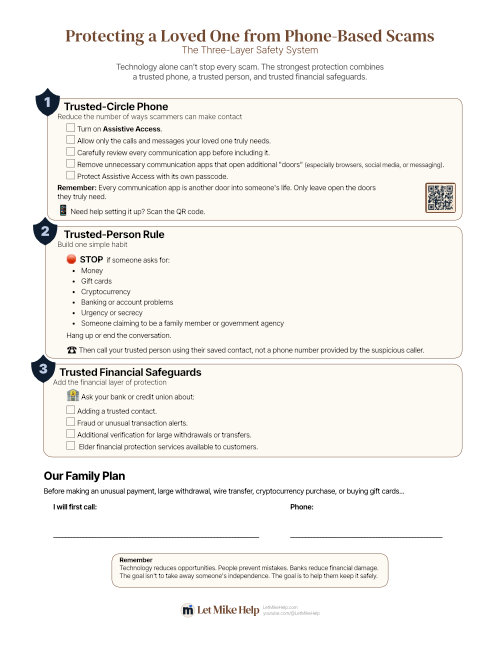
The handout includes:
- The Three-Layer Safety System
- A simple family action plan
- A place to write the name and phone number of a trusted contact
Print it, discuss it together, and keep it somewhere easy to find.
Download: Protecting a Loved One from Phone-Based Scams
This video walks through configuring Assistive Access, choosing which apps to include, and demonstrates what daily use looks like for your loved one.
What Is Assistive Access?
Apple originally created Assistive Access as an accessibility feature that simplifies the iPhone experience for people who benefit from a cleaner, more focused interface. It turns out those same characteristics also make it an excellent option for reducing the ways scammers can reach someone who is especially vulnerable to phone-based fraud.
Rather than trying to manage dozens of settings scattered throughout iOS, Assistive Access brings everything together in one place.
Where to Find Assistive Access
On your iPhone, open:
Settings → Accessibility → Assistive Access
Tap Set Up Assistive Access to begin the guided setup process. Apple walks you through selecting which apps will be available and how calls and messages should work.
The complete walkthrough (including my recommended settings) is covered step-by-step in the video above.
Think About Every “Door”
One idea I introduce in the video is that every communication app is another door into someone’s life.
- Phone calls are a door.
- Messages are another.
- FaceTime.
- WhatsApp.
- Facebook.
- Email.
- A web browser.
Every one of these provides another potential path for scammers to reach someone.
That doesn’t mean every app is dangerous. It simply means each one should be included intentionally. If your loved one doesn’t need a particular communication app, consider leaving that door closed.
The Three-Layer Safety System
After researching this topic, I don’t recommend relying on technology alone. Instead, I recommend combining three layers of protection.
Layer 1 — Trusted-Circle Phone
Configure Assistive Access so your loved one has access only to the communication methods and apps they genuinely need.
The goal isn’t to remove independence. It’s to reduce unnecessary opportunities for scammers to make contact.
Layer 2 — Trusted-Person Rule
Create one simple family rule:
If anyone unexpectedly asks for money, gift cards, cryptocurrency, banking information, secrecy, or immediate action…
Stop.
End the conversation.
Then call a trusted family member or friend using their saved contact—not a phone number provided by the caller. 045 Protect Seniors.srtSRT
Layer 3 — Trusted Financial Safeguards
Talk with your bank or credit union about available protections, such as:
- Adding a trusted contact
- Fraud or unusual transaction alerts
- Additional verification for large withdrawals or transfers
- Elder financial protection services
These safeguards create one final checkpoint if a scammer succeeds in making contact.
What Assistive Access Cannot Do
One of the most important messages in the video is that Assistive Access is not a complete anti-scam solution.
It cannot stop:
- Caller ID spoofing
- Email scams
- In-person scams
- The loved one using another phone or device
- Every persuasive conversation
Assistive Access closes many doors. It doesn’t close every door.
A Shared Decision
Assistive Access significantly changes how an iPhone works.
For that reason, I believe it should be introduced through a respectful conversation, not imposed on someone.
Many older adults will never need Assistive Access.
But for someone who has become especially vulnerable to phone-based scams, mild cognitive decline, or repeated fraud attempts, it can become an important part of helping them maintain their independence while reducing risk.
Final Thoughts
No phone setting can stop every scam.
But a Trusted-Circle Phone, a Trusted-Person Rule, and Trusted Financial Safeguards create a practical system that can dramatically reduce the chances of a devastating financial loss.
If someone came to mind while reading this article, don’t wait for a close call before taking action. Set aside some time, have the conversation, and work through the setup together.
Sometimes the most meaningful way to help someone isn’t teaching them to recognize every scam. It’s reducing the opportunities for scammers to reach them in the first place.